
Zero-Result Handling
Configure what happens when a search query returns no results on your storefront.
Zero-Result Handling
When a shopper searches for something and no products match, you do not want them to see a blank page. FilterIQ provides configurable zero-result fallback behavior to keep shoppers engaged.
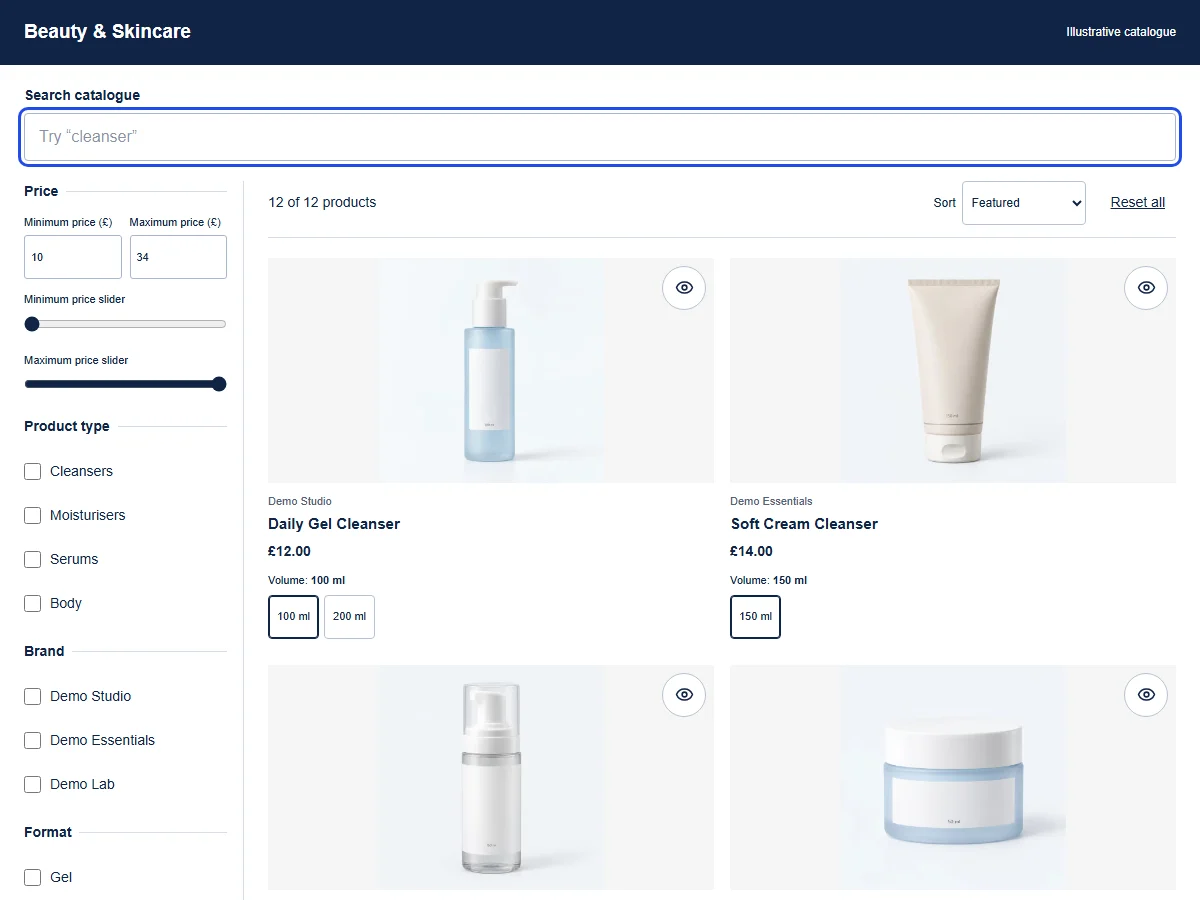
See the shopper interaction
Search for “nothing-matches-this”, then press Reset all. This demonstrates clearing a query, not automated fallback recommendations.
These illustrative products demonstrate the controls in this website. Storefront appearance and supported behaviour depend on your published configuration and theme.
British female AI narration · English captions
Read the transcript
[FilterIQ intro: Search. Filter. Find.] A search doesn't always find a match, so shoppers need a clear way to keep browsing. In this demo beauty catalogue, we enter a search that matches none of the twelve products. The page explains that there are no results and suggests ways to broaden the search. Here, we choose Reset all. The search text clears, and all twelve products return to the catalogue. From this fresh starting point, we could try a different search or browse the collection again. This example shows a search reset; it doesn't show fallback recommendations.
Download transcriptTry this example
The products are available to read. Interactive controls become available when JavaScript loads.
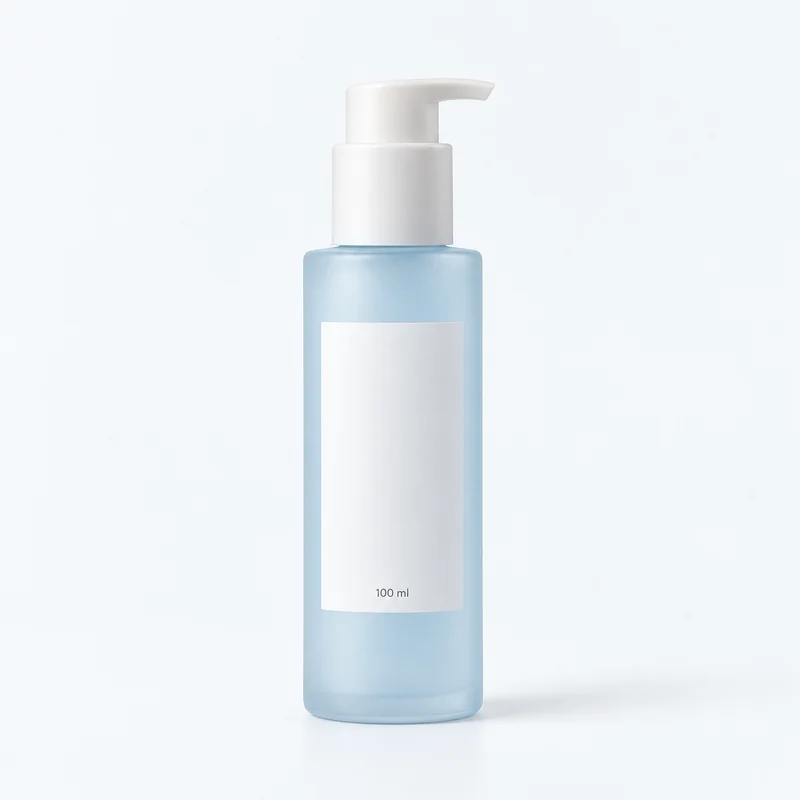
Demo Studio
Daily Gel Cleanser
£12.00
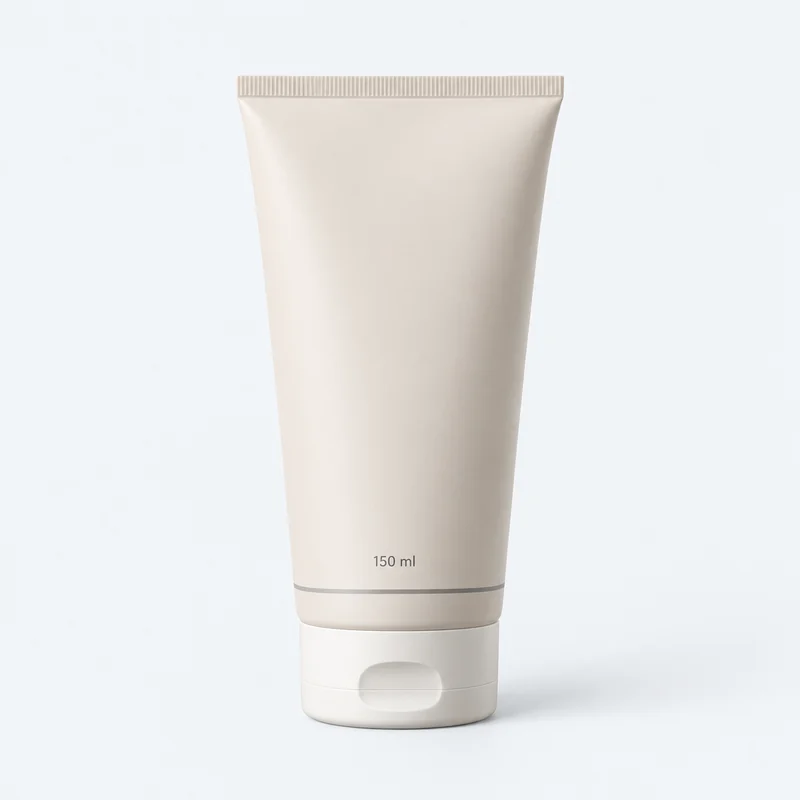
Demo Essentials
Soft Cream Cleanser
£14.00
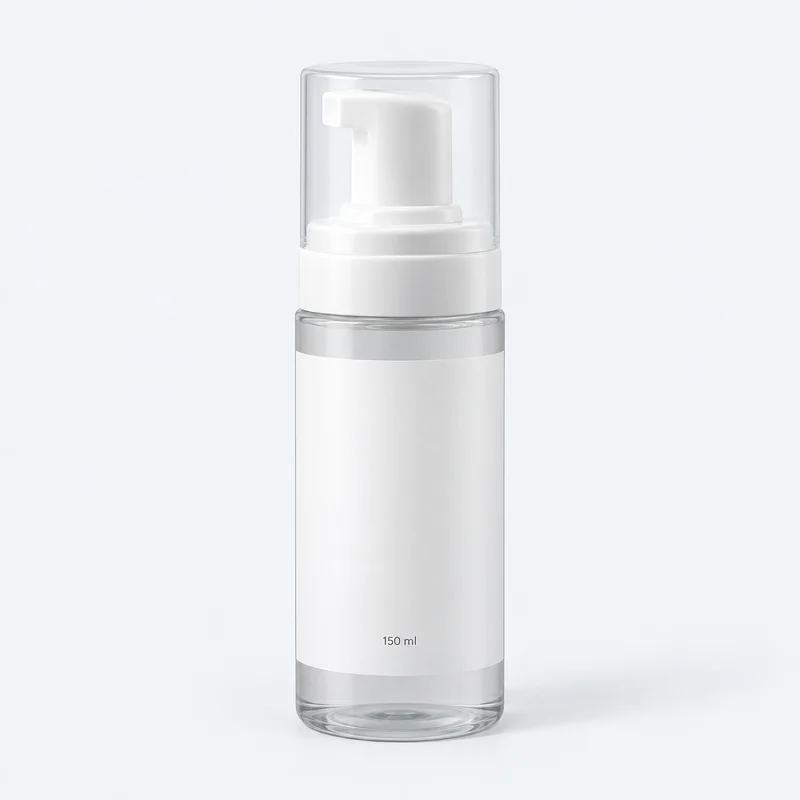
Demo Lab
Cloud Foam Cleanser
£16.00
Demo Studio
Daily Face Cream
£18.00
Showing the first 4 matches in this focused example. Explore all 12 in the full catalogue.
Illustrative products, brands, prices and photography. Choices match recorded fields in this browser; no live store connection or checkout.
How It Works
When a search query returns zero results from the search engine, the backend checks your zero-result configuration and returns fallback content. This is configured per-shop in the app dashboard.
Configuration
Go to Merchandising > Zero Results in the app dashboard to configure:
Fallback Products
Choose what products to display when there are no results:
- Popular products -- Show your best-selling or most-viewed products
- New arrivals -- Show recently added products
- Curated collection -- Show products from a specific collection you choose
- None -- Show only the message, no fallback products
Custom Message
Set a custom message that appears above the fallback products. The default message is:
"We couldn't find results for '[query]'. Here are some suggestions:"
You can customize this text to match your brand voice.
Suggested Actions
Configure helpful actions that appear alongside the zero-result message:
- Browse collections -- Links to your top collections
- Contact support -- Link to your contact page
- Try a different search -- Prompt with popular search terms
Zero-Result Analytics
Every zero-result query is tracked and available in Analytics > Zero Results. This data helps you:
- Identify missing products -- Queries for products you do not carry reveal demand gaps
- Find synonym opportunities -- Queries that should have matched but did not (e.g., "trainers" when you only have "sneakers") can be resolved by adding synonyms
- Spot data quality issues -- If common product names return zero results, your product data may need updating
Synonym Suggestions from Zero-Result Data
The system automatically generates synonym suggestions based on zero-result queries. When a zero-result query is similar to terms in your product catalog, a suggestion appears in Search > Synonyms > Zero-Result Suggestions.
For example, if shoppers frequently search "hoodie" but your products use "sweatshirt," the system suggests adding a synonym pair.
Pre-Search Panel
You can also configure what shoppers see before they type anything in the search bar. Go to Merchandising > Pre-Search to set up:
- Trending searches -- Show popular recent queries
- Featured products -- Highlight specific products
- Featured collections -- Highlight key collections
This pre-search panel appears when a shopper clicks into the search bar but has not yet typed anything.
Best Practices
- Review zero-result queries weekly -- This is one of the highest-value analytics reports
- Always show fallback products -- A blank page is a lost customer
- Use the synonym suggestion pipeline -- Resolving zero-result queries at the synonym level is more effective than only showing fallback content
- Keep your custom message helpful -- Include specific actions the shopper can take