
Color & Image Swatches
Configure color and image swatches for visual filtering in FilterIQ.
Color & Image Swatches
Swatches turn plain text filter options like "Red" or "Navy" into visual color circles or image thumbnails. Shoppers can identify and select colors at a glance instead of reading a text list.
See the shopper interaction
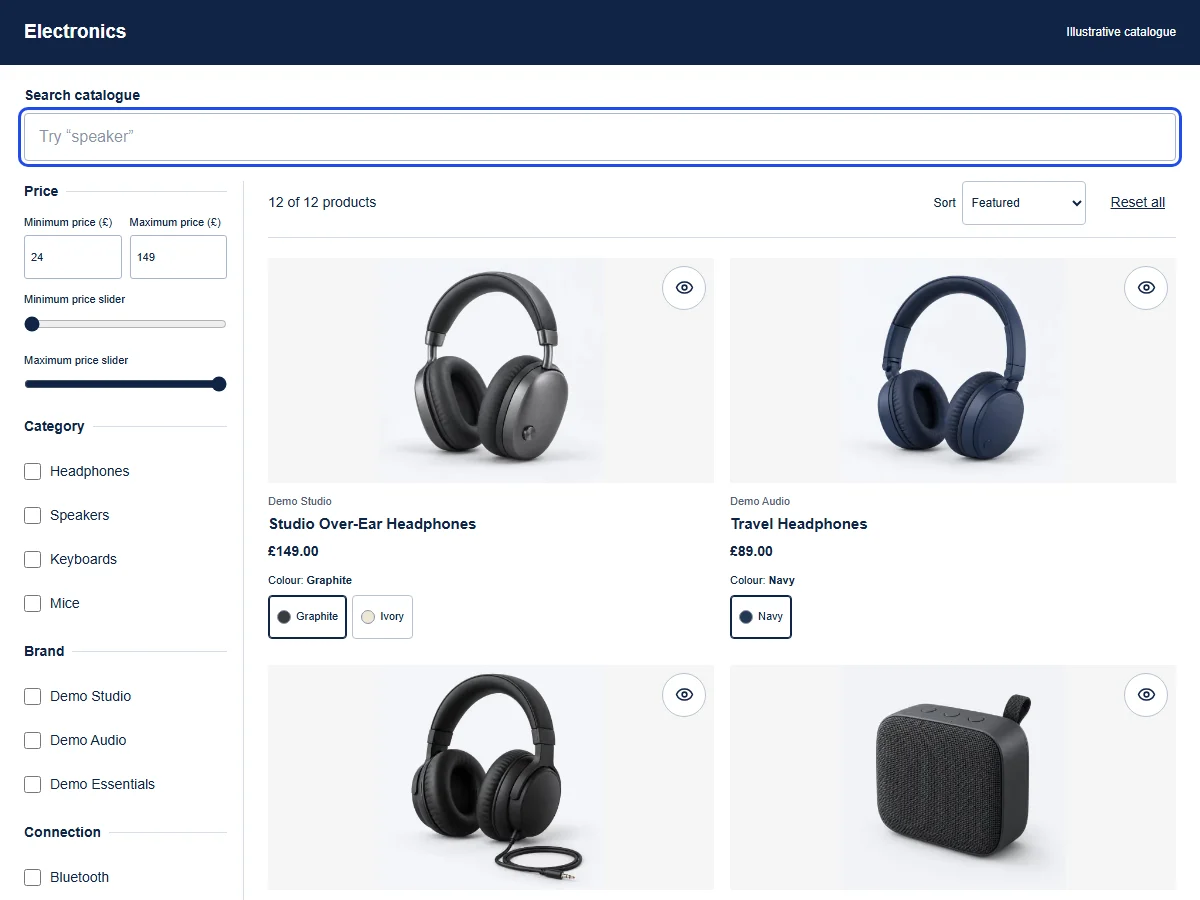
Choose another colour on the headphones. The selected option and photograph update together.
These illustrative products demonstrate the controls in this website. Storefront appearance and supported behaviour depend on your published configuration and theme.
British female AI narration · English captions
Read the transcript
[FilterIQ intro: Search. Filter. Find.] Sometimes the colour is what makes a product worth a closer look. These demo headphones start in Graphite, but let's see them in Ivory. When we choose that colour on the card, both the label and photograph change, so we can check the appearance right in the grid. Opening quick view carries the same Ivory selection into a larger image, alongside the example price and product details. That gives us a closer look at the colour we've chosen before we decide whether to keep exploring.
Download transcriptTry this example
The products are available to read. Interactive controls become available when JavaScript loads.
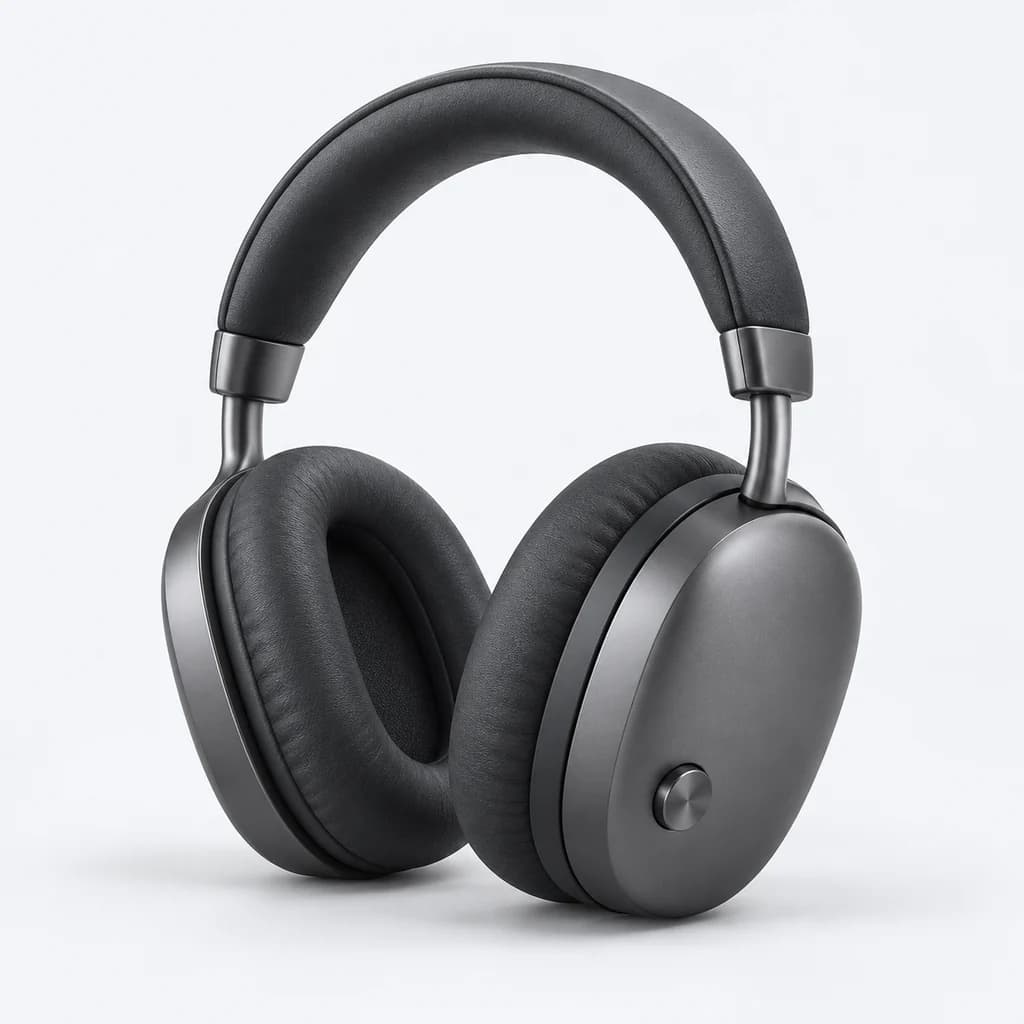
Demo Studio
Studio Over-Ear Headphones
£149.00
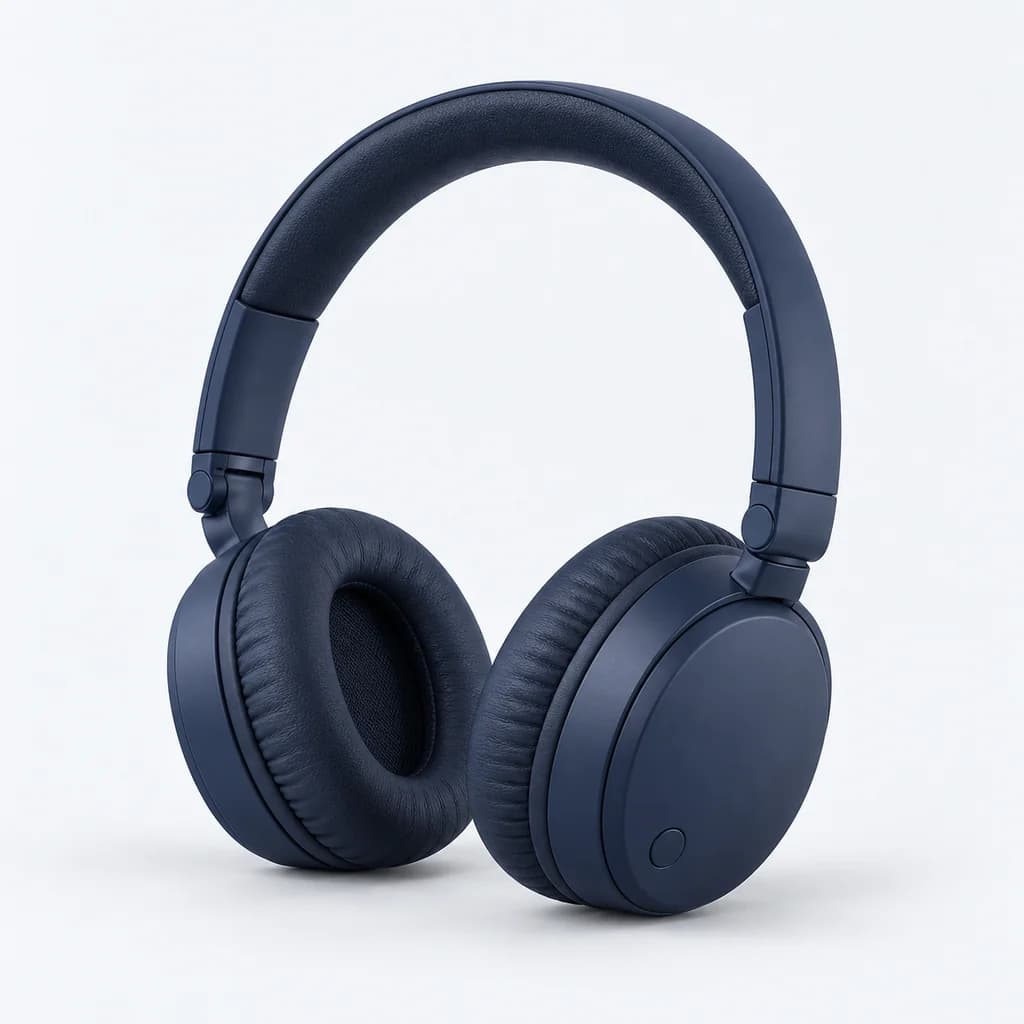
Demo Audio
Travel Headphones
£89.00
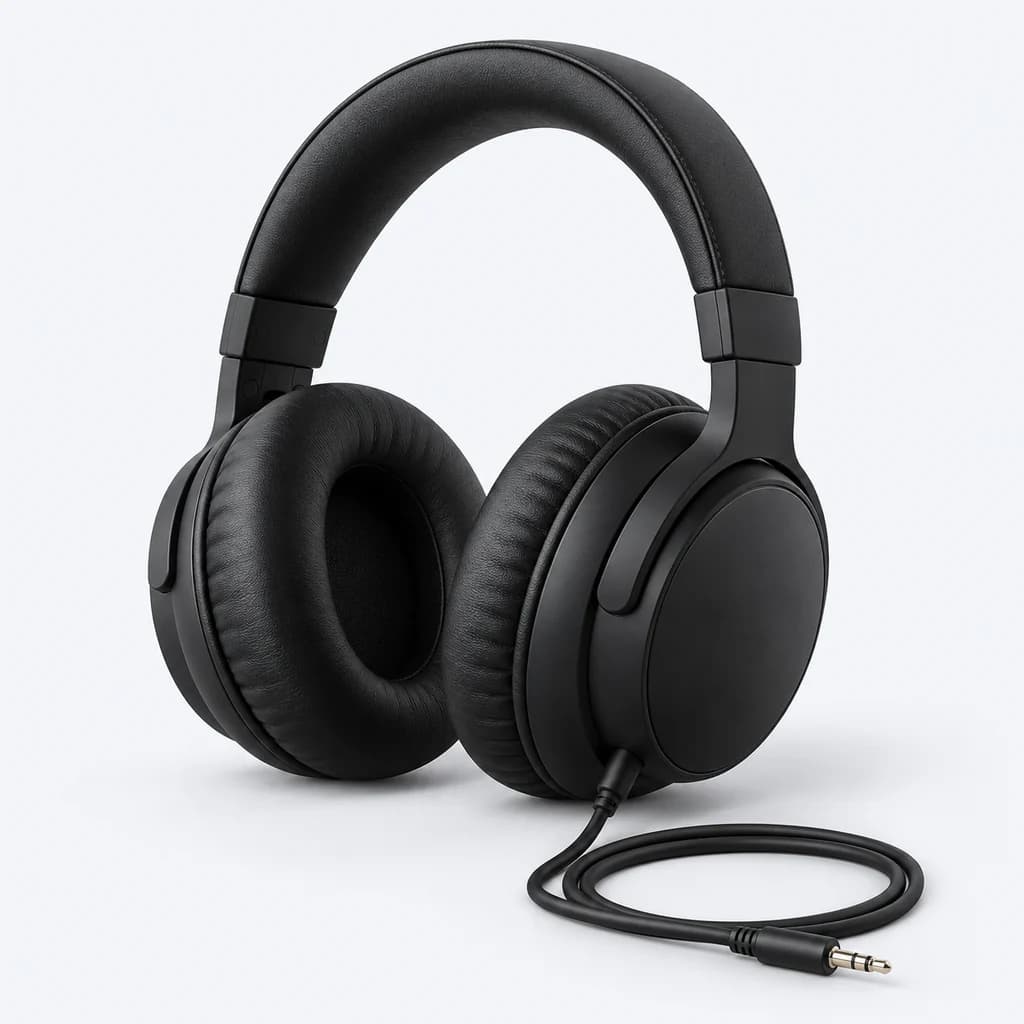
Demo Essentials
Wired Monitor Headphones
£59.00
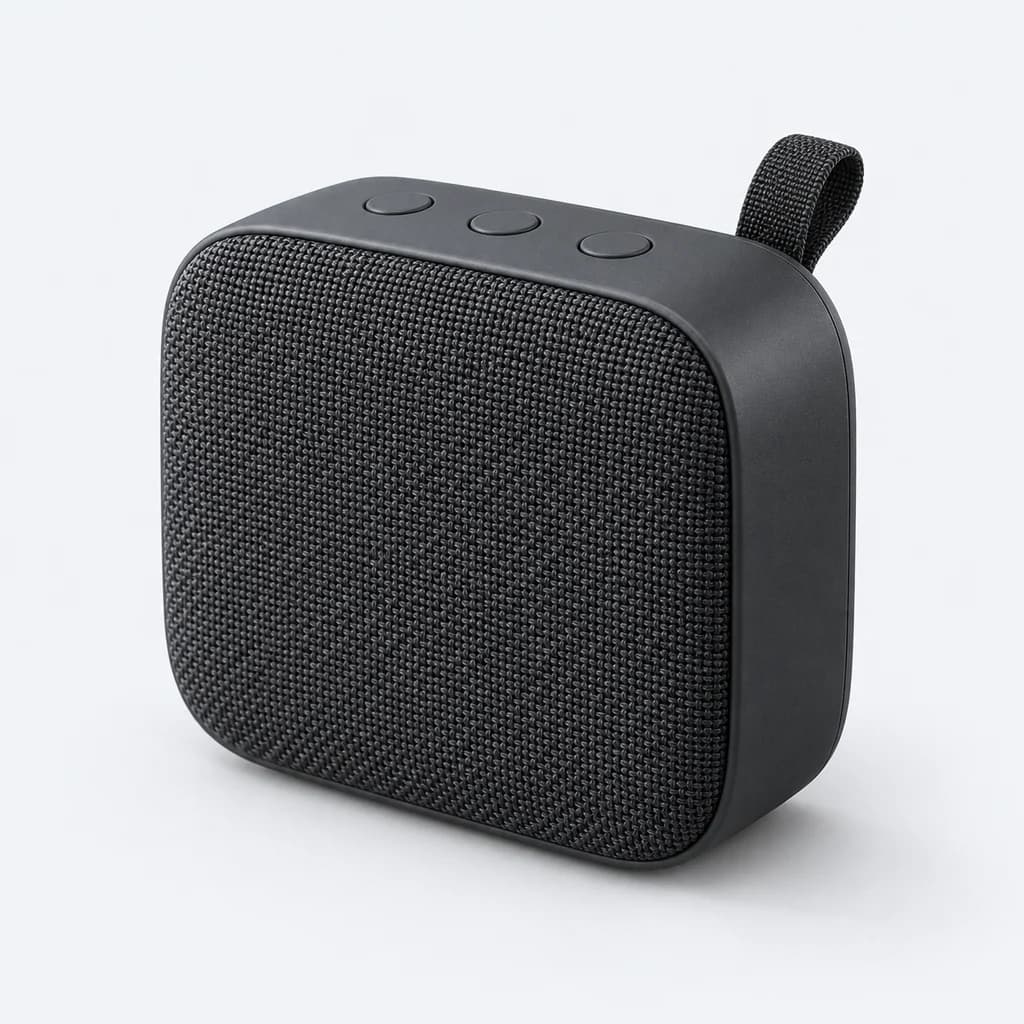
Demo Audio
Pocket Speaker
£39.00
Showing the first 4 matches in this focused example. Explore all 12 in the full catalogue.
Illustrative products, brands, prices and photography. Choices match recorded fields in this browser; no live store connection or checkout.
You configure swatches from the Appearance tab on the Filters page (/app/filters), in the swatch configuration section.
What Swatches Do
When you enable swatches for a filter, each option value is displayed as a colored circle (or image thumbnail) instead of a checkbox label. For example:
- "Red" shows as a red circle
- "Navy" shows as a dark blue circle
- "Floral Print" shows as a small image of the pattern
Swatches work with any filter that represents visual attributes -- most commonly color variant options, but also materials, patterns, and textures.
This captured demo product shows a shopper choosing Purple on a card. The selected swatch and its product photograph match; your own result depends on your product options and image mapping.
All four available colours are visible on the card. Selecting Purple changes the Midnight Velvet dress photograph.
On-site 12-product catalogue preview; prices and availability are a captured sample. · Captured 2026-10-21. Open interactive demo
Open full-size capture by selecting the image. Open original file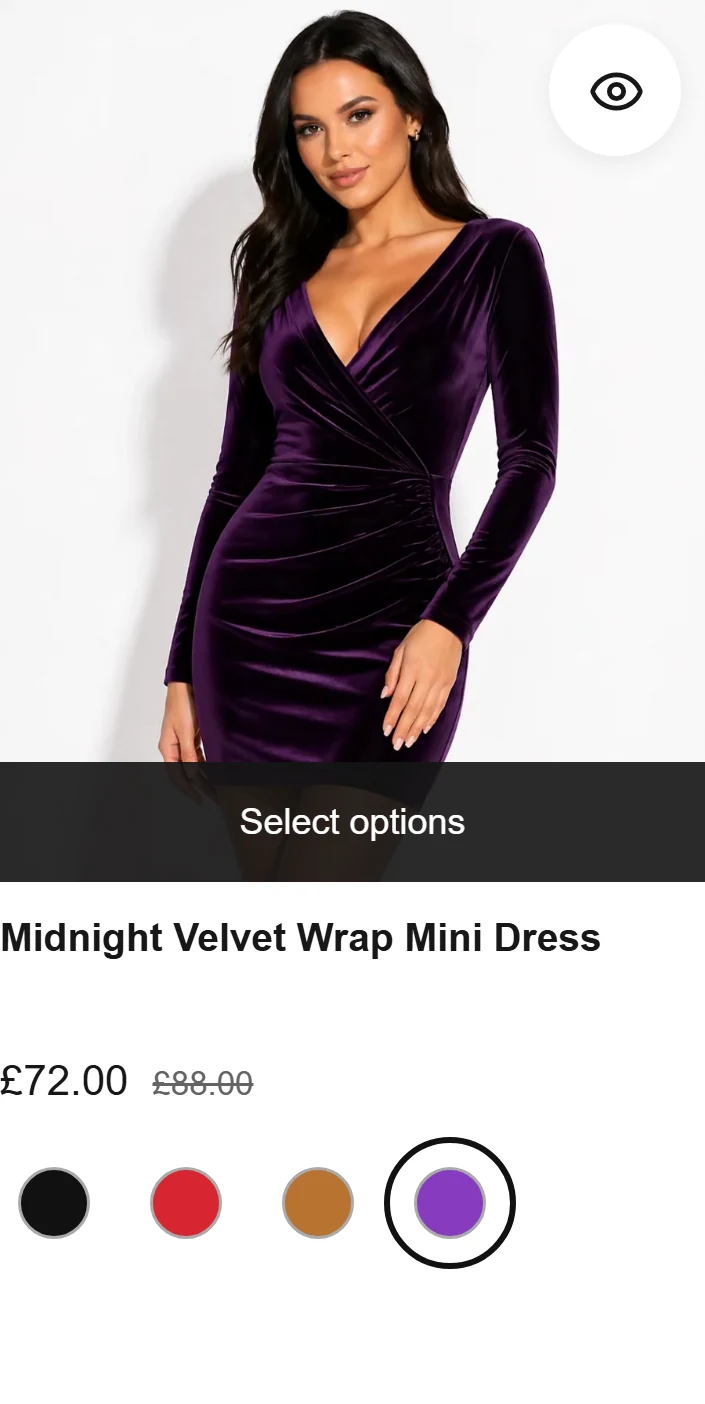
Configuring Color Swatches
Mapping Values to Colors
Each product value needs to be mapped to a hex color:
- Go to the Appearance tab on the Filters page
- Scroll to the Swatches section
- You will see a list of all discovered color values from your products
- For each value, click the color picker to choose a hex color
- Click Save
For example:
- "Red" -->
#FF0000 - "Navy" -->
#001F3F - "Forest Green" -->
#228B22 - "Blush" -->
#DE5D83
Auto-Detection
FilterIQ attempts to auto-detect colors for common color names. When you first set up swatches, standard names like "Red", "Blue", "Black", and "White" are pre-mapped automatically. You only need to manually map custom or brand-specific color names.
Swatch Shapes
You can choose from three swatch shapes:
| Shape | Description |
|---|---|
| Circle | Round swatches (default) |
| Square | Square swatches with sharp corners |
| Rounded | Square swatches with rounded corners |
Select the shape that matches your store's design aesthetic. The shape applies to all swatches globally.
Image Swatches
For attributes that cannot be represented by a single color -- patterns, textures, multi-color prints -- you can upload image swatches:
- In the Swatches section, find the value you want to assign an image to
- Click the upload icon next to the color picker
- Upload a small square image (recommended size: 64x64 pixels or larger)
- The image replaces the color circle for that value
Image swatches work alongside color swatches. You can mix and match: some values use colors, others use images.
Supported formats: PNG, JPG, WebP
Unmapped Values
If a product value does not have a color or image mapping, FilterIQ falls back to displaying it as a standard text label with a neutral gray circle. This ensures all filter options remain visible even if you have not mapped every value.
To find unmapped values:
- Open the Swatches section
- Look for values marked with a gray indicator or "Unmapped" label
- Assign a color or image to each one
Swatch Sizing
Swatch size is controlled by the --ssf-swatch-size CSS variable. The default is 32px. You can adjust this in your theme CSS:
:root {
  --ssf-swatch-size: 40px; /* larger swatches */
}
Available size presets in the app:
- Small -- 24px
- Medium -- 32px (default)
- Large -- 40px
Auto-Republish After Changes
When you save swatch changes, FilterIQ prompts you to republish your configuration so the changes appear on your storefront. Swatch mappings are part of your filter configuration, so they follow the same draft-and-publish workflow:
- Make swatch changes and click Save -- changes are saved as a draft
- Click Publish to push the updated swatches live
If you have auto-publish enabled, swatch changes are pushed to your storefront automatically when you save.
Best Practices
- Map all values -- Unmapped values degrade the visual experience. Audit your swatch list regularly as new products are added.
- Use accurate colors -- If "Navy" looks more like black in your swatch, shoppers may be confused. Match the actual product color as closely as possible.
- Keep image swatches consistent -- Use the same image size and style for all image swatches so they look uniform in the filter panel.
- Test on mobile -- Verify that swatches are large enough to tap accurately on mobile devices. The default 32px size works for most stores.
Need Help?
If you need help mapping a large number of color values, contact support@filteriq.app. We can help with bulk swatch configuration.