
Turn catalogue detail into useful choices.
Choose the attributes shoppers can use, how they are labelled and where they appear. Start with your catalogue, then review the experience on your theme.
Product discovery software for Shopify · Private previewSetting a £30–£80 price range narrows the on-site 12-product catalogue to six products.
On-site 12-product catalogue preview; the scrollable result pane was expanded for this still to show all six matches. Prices and availability are a captured sample. · Captured 2026-10-21. Open interactive demo
Open full-size capture by selecting the image. Open original file
See how filter sets are organised.
A store-wide default provides a starting point, while a collection can have its own filter set. This capture shows that organisation in the app.
The Filter Setup screen shows a store-wide default filter set and a custom Album Covers collection filter set.
Read-only view of FilterIQ filter setup for the ThatGig example store. Editing and publishing were not shown. · Captured 2026-10-19.
Open full-size capture by selecting the image. Open original file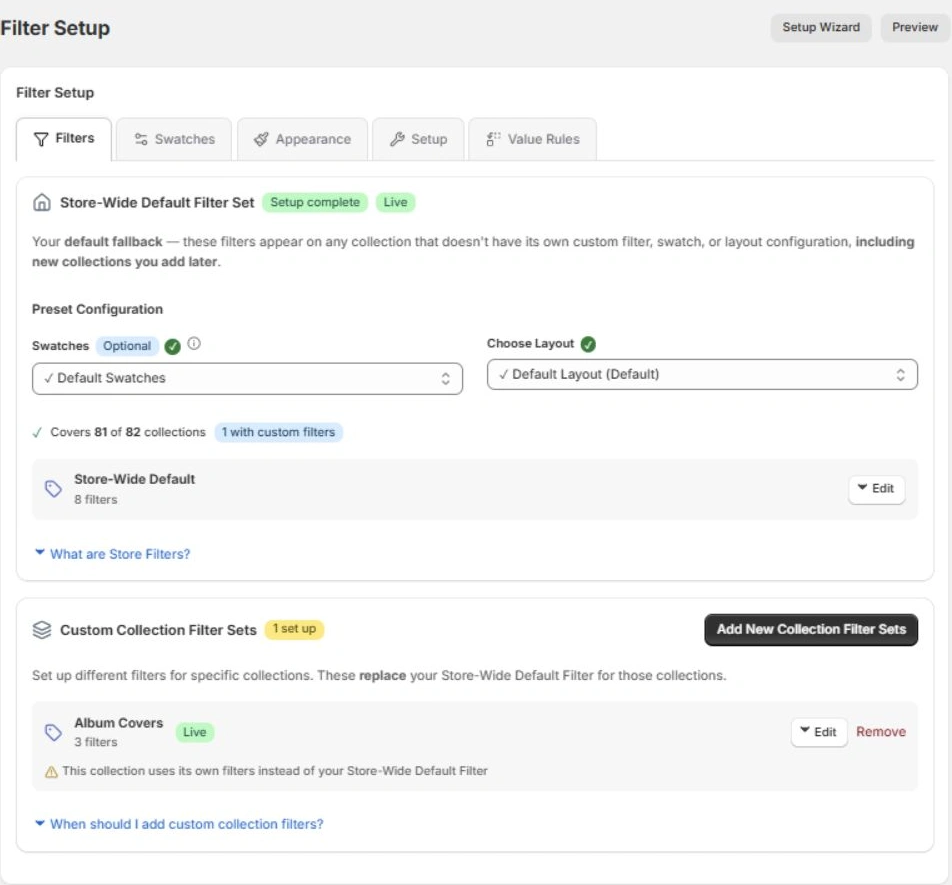
The source field comes first.
A helpful filter needs a meaningful label, consistent values and enough product coverage. Review those foundations before choosing a display style.
Read the filter guides- Choose the source
- Use product options, vendors, product types, collections, prices and supported metafields. Check that the field contains values on the products where you want to offer it.
- Choose the presentation
- Consider colour swatches, size choices, checkbox lists and price ranges. Ratings, dates, numeric fields and image swatches need a supported source and display configuration; confirm availability during setup.
- Choose the placement
- Configure labels, order and enabled filters. Preview sidebar, toolbar or drawer placement on the theme and screen sizes you use.
Make the next choice easy to see.
Show a clear label for every attribute and keep selected values visible. On mobile, test the drawer, active selections and reset action as one complete journey.
Explore the fashion exampleColour and size
Use your recorded colour and variant size values. Keep distinct sizing systems separate; the label is not a fit recommendation.
Materials and metafields
Confirm supported field mapping and missing values. A metafield definition alone does not establish product coverage.
Empty and changing results
Check loading, empty and error states under realistic network conditions. Make it easy to remove a selection and return to results.
Watch the choices change the results.
Short recordings of our illustrative catalogues show the shopper interaction. Try the same controls in the full demo.
British female AI narration · English captions
Read the transcript
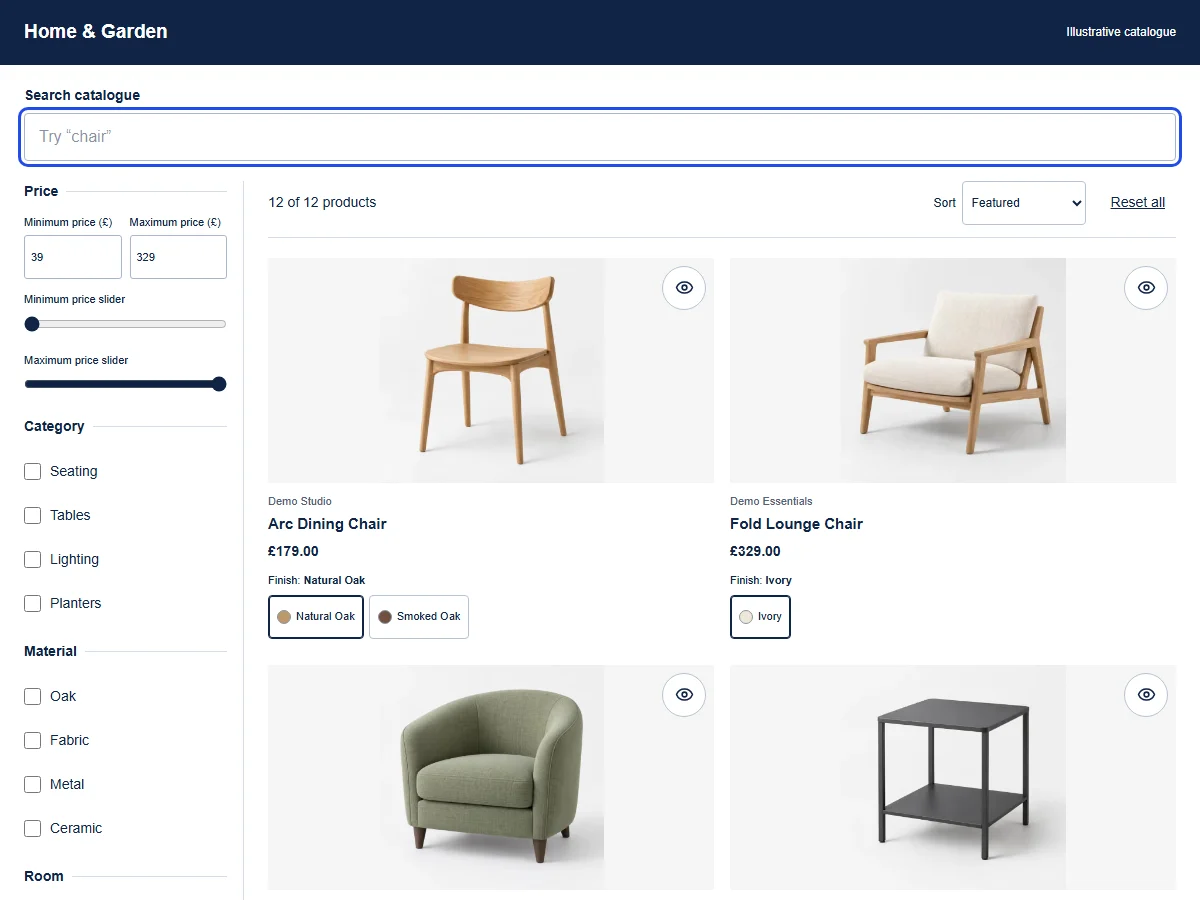
[FilterIQ intro: Search. Filter. Find.] Suppose we're looking for oak furniture for a dining room. This demo catalogue starts with twelve products, so let's use those two preferences to narrow it down. Choosing Oak under Material leaves three matches. Adding Dining under Room brings that down to two products that fit both choices. You can see each selection above the grid. If we'd like a little more choice, we can remove Dining on its own. Oak stays selected, and the third oak product returns, ready for us to compare with the others.
Download transcript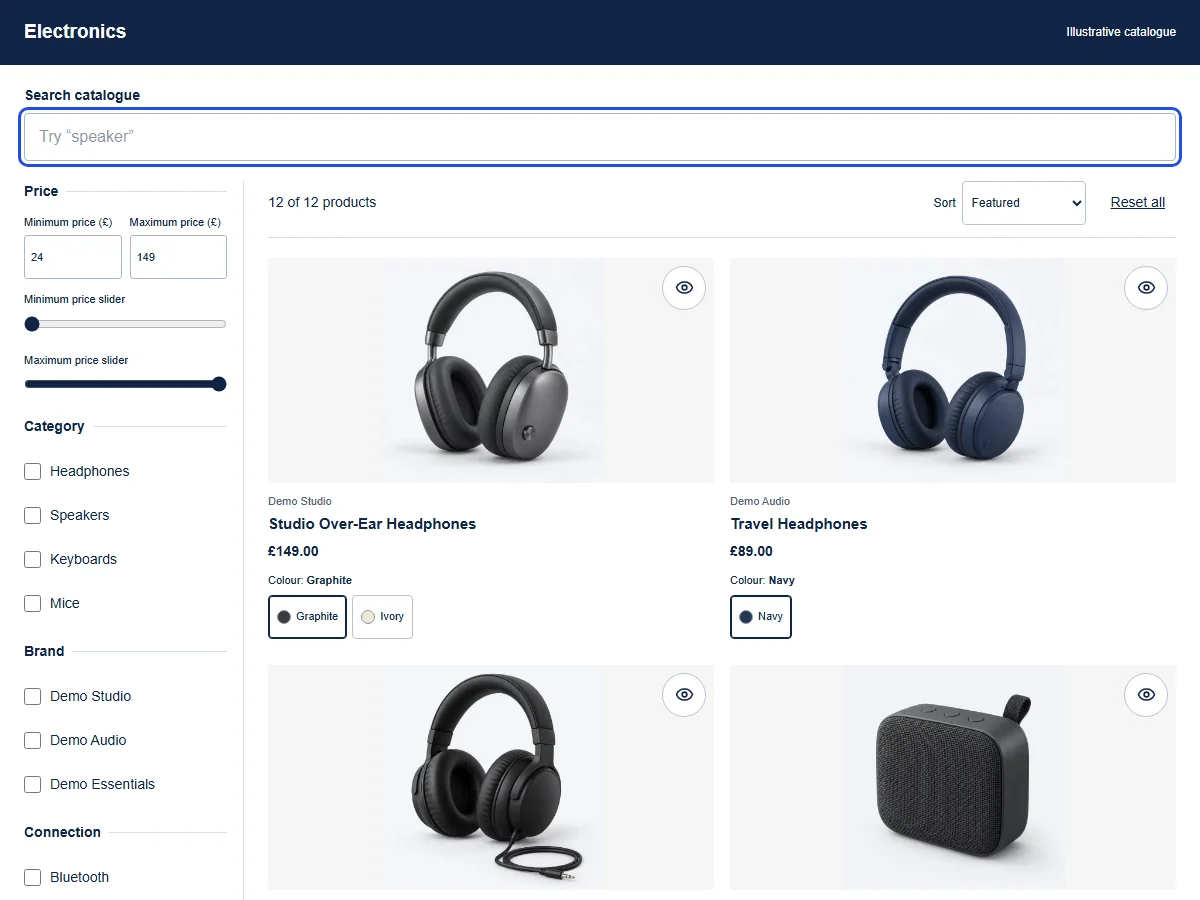
British female AI narration · English captions
Read the transcript
[FilterIQ intro: Search. Filter. Find.] When a product catches your eye, a little more detail can help you decide whether to keep looking. In this demo catalogue, we open quick view on the Studio Over-Ear Headphones. The larger photograph sits beside the description, example price and colour choices, with the collection still behind it. Let's try Ivory: the selected colour and image change together. When we close quick view, that same Ivory choice stays on the product card, so we can continue browsing with the option we've just explored still visible.
Download transcriptSize M remains selected after closing and reopening the drawer. Size buttons and colour swatches are visible at a 390-pixel viewport.
FilterIQ demo catalogue; source storefront access may require a password. · Captured 2026-10-17. View source storefront
Open full-size capture by selecting the image. Open original file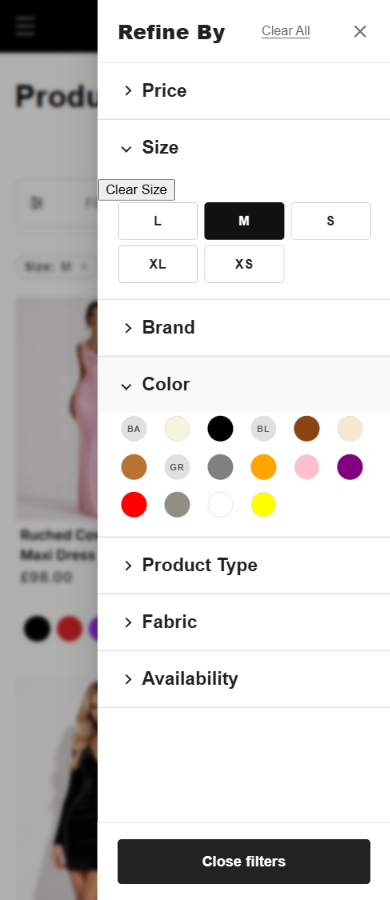
See the next choice on the product itself.
Explore colour swatches, a closer product view and option selection in these captures from our demo store.
All four available colours are visible on the card. Selecting Purple changes the Midnight Velvet dress photograph.
On-site 12-product catalogue preview; prices and availability are a captured sample. · Captured 2026-10-21. Open interactive demo
Open full-size capture by selecting the image. Open original file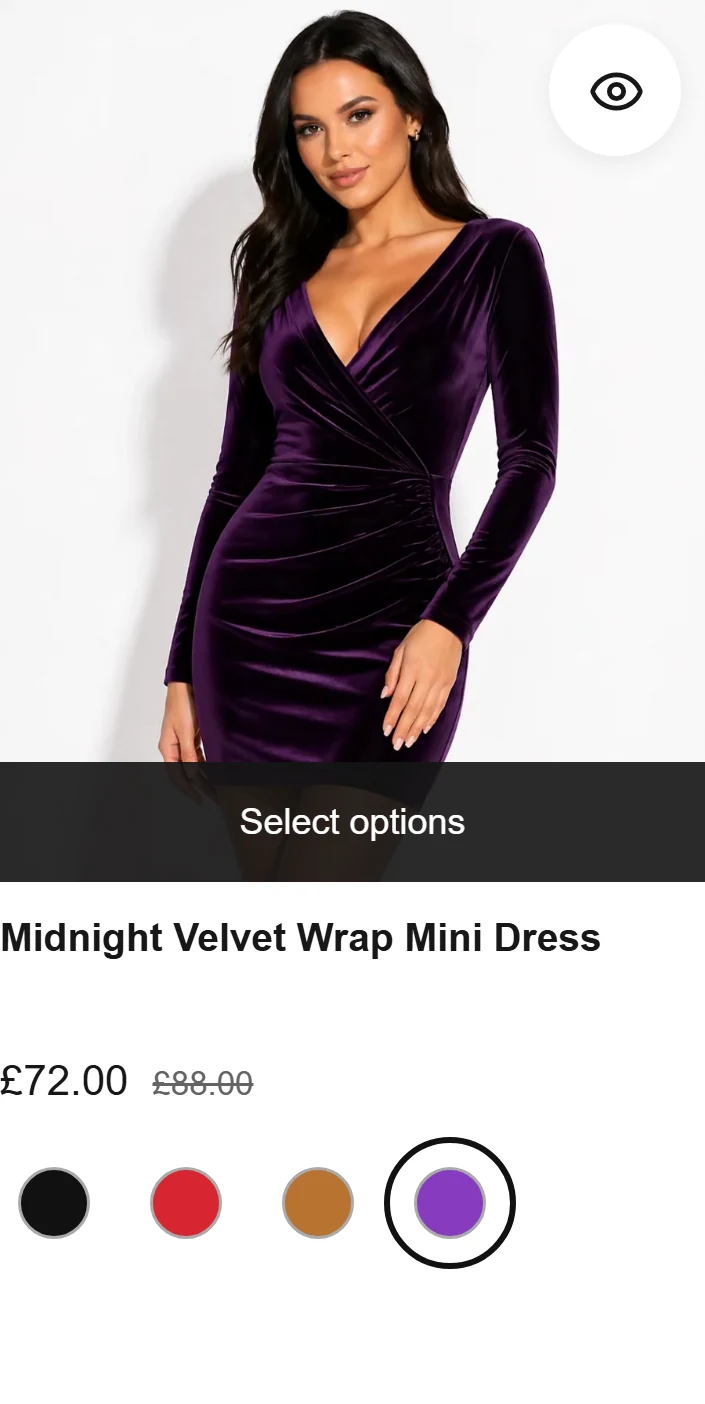
Midnight Velvet Wrap Mini Dress is open in quick view with all four colour choices, Purple and size M selected, plus its gallery and price.
On-site 12-product catalogue preview; prices and availability are a captured sample. · Captured 2026-10-21. Open interactive demo
Open full-size capture by selecting the image. Open original file
The card option picker shows Black, Red, Copper and Purple, with Purple and size M selected.
On-site 12-product catalogue preview; prices and availability are a captured sample. · Captured 2026-10-21. Open interactive demo
Open full-size capture by selecting the image. Open original file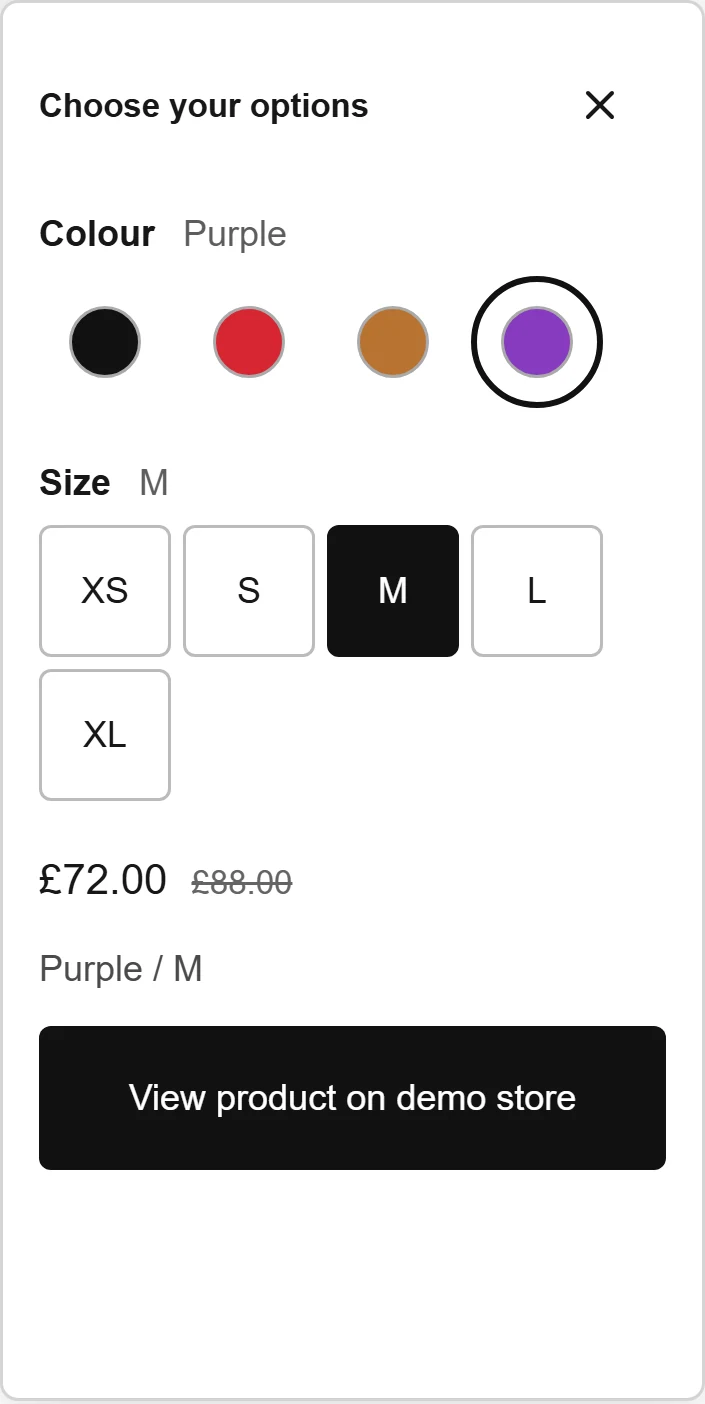
Map a field to a shopper choice
A long collection becomes easier to browse when shoppers can narrow it using meaningful product attributes, with their selected values still visible.
- What your team controls
- Choose the source, label, display and position of a filter. Keep material separate from finish, and review inconsistent values before grouping them under one choice.
- What the shopper experiences
- The configured choice should narrow the displayed products, show the active selection and offer a clear reset. Desktop controls and the mobile drawer need to produce the same intended matches.
- Limitations and requirements
- A metafield definition does not establish value coverage. Display types and search within long option lists need a supported renderer. A displayed size and colour do not prove an in-stock variant with that exact combination.
What to verify in your preview
Check 1
Choose a source with known values and missing-data examples; compare the configured label and display with the source products.
Check 2
Select multiple values, inspect their matching products, then try a combination with no results. Check counts and reset.
Check 3
Repeat on mobile, including reopening the drawer and a long value list. Verify the actual variant and availability on the product page.
Evaluate FilterIQ with your catalogue.
Review preview availability, feature guidance and billing terms before planning setup. Contact the team about your catalogue and requirements.